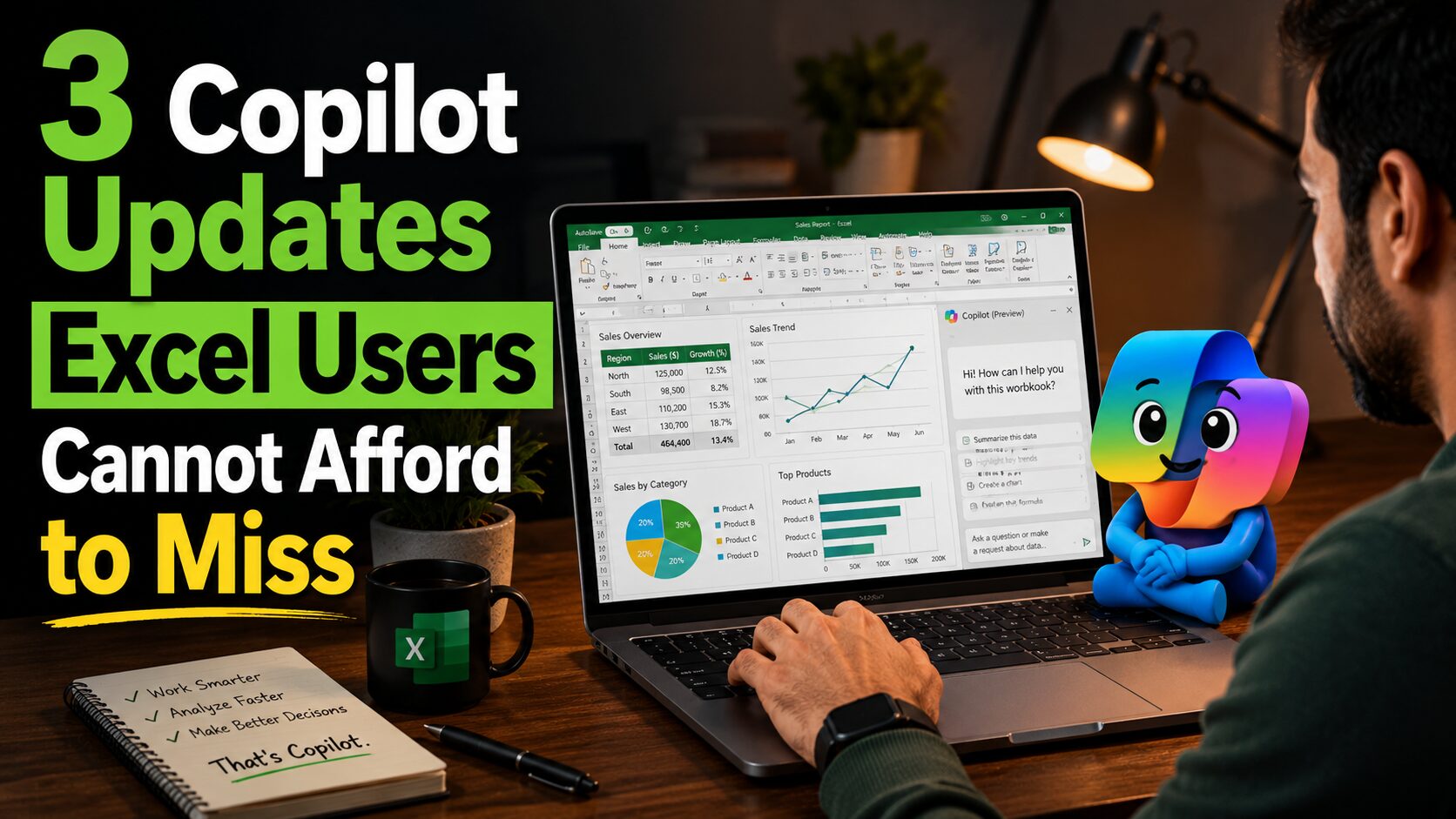
Copilot Is Now Easier to Find and Use
Microsoft has consolidated Copilot's entry points from multiple locations down to two. The first is a Copilot icon fixed at the bottom right corner of the screen. The second is a contextual entry point that appears when content is selected, such as a cell range or block of text. If the icon obstructs the working area, right-clicking it and selecting Dock moves it aside. A draggable docking option is coming soon.
Alongside the new entry points, Copilot now surfaces curated suggestions based on what is selected. Selecting the entire sheet produces broad suggestions. Selecting a single cell or sentence produces targeted edits, rewrites, and precise fixes. The suggestions narrow as the selection becomes more specific.
Keyboard shortcuts have also been updated and unified across Microsoft 365 apps. Alt+C on Windows and Cmd+Control+I on Mac both set focus on the Copilot button. F6 works across all platforms and replaces the previous three-keystroke shortcut Alt+H, F, X that many users had been relying on.
The =COPILOT Function Can Now Search the Web
The =COPILOT function, which allows users to call Copilot directly from a cell formula, has received a significant update: it can now search the web and ground its response in live data.
Previously the function could only work with data already present in the workbook. With this update, a =COPILOT formula can retrieve current information from the web and insert it into the relevant cell. Practical uses include enriching a table with up-to-date figures, looking up company details, or pulling in benchmarks without switching between applications.
This update is currently available to Insiders and Frontier users on Windows, Insiders on Mac, and Frontier users on the web. It is not yet available for general release.


Copilot Edits Are Now Visible in Show Changes
Show Changes is an existing Excel feature that logs edits made to a shared workbook, showing who changed what and when.
When a collaborator edits a workbook using Copilot, the Show Changes card now includes a Copilot attribution indicator: a small visual flag and Copilot icon labelled "Copilot edited." Anyone reviewing the workbook can immediately distinguish AI-assisted edits from manual ones, identify exactly where Copilot was used, and verify those changes before acting on them.
This feature is available now for all Excel for Web users. Microsoft has confirmed it will extend to Windows and Mac in the near future.
One practical note: if you need to reset the Show Changes pane entirely, on Excel for Web go to File then Options and look for Reset Changes pane. On Windows and Mac go to File then Info.
Conclusion
All three updates move in the same direction: making Copilot more accessible, more capable, and more transparent in shared workbook environments. The Show Changes update addresses a genuine gap for any team where knowing what Copilot changed versus what a person changed has always required guesswork.
If you want updates like these in your inbox every week, subscribe to the newsletter.